
Step by step
Import a plan image
Turn a Smarter Agility image export or screenshot into a course. Review the result before saving.
Step by step
- Choose a plan imageOpen “Import a course” and select “Plan image”. Use “Choose image” or “Paste image”.Open “Import a course” and choose your image, or use “Paste image from clipboard”.
- View in 3DThe public 3D preview needs no account. Sign in to save; your result stays with you.
- Review in your accountSign in or create a free account, then check your imported plan.
- Compare original and resultCheck obstacles, numbers and dimensions. Give your course a recognisable title.
- Save deliberatelyAdd the reviewed result to your courses. Only then is it saved in your collection.
Some apps don’t offer image copying, or Safari may not allow clipboard access. Save the image to Photos and choose it as a file.
Which images work?
SA image exports and screenshots showing the complete plan clearly. Photos of printouts and CRCD4 images are not reliably supported. Use an .agl file for CRCD4.
Import plan imageBack to homeExample image and recognition details
Plan image
Example: importing a plan image
A real course from Smarter Agility 9.12.2: FCI Agility 3, 45 × 22 m, 19 obstacles and 20 numbers. The first picture is the plan image, the second shows the recognition result without any manual correction.
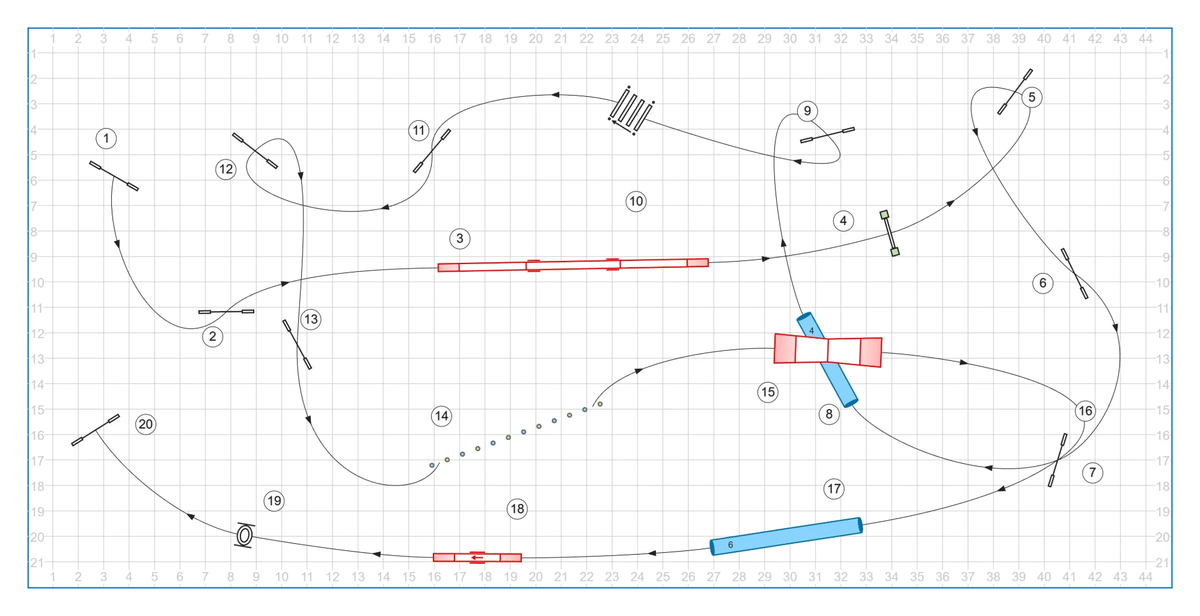
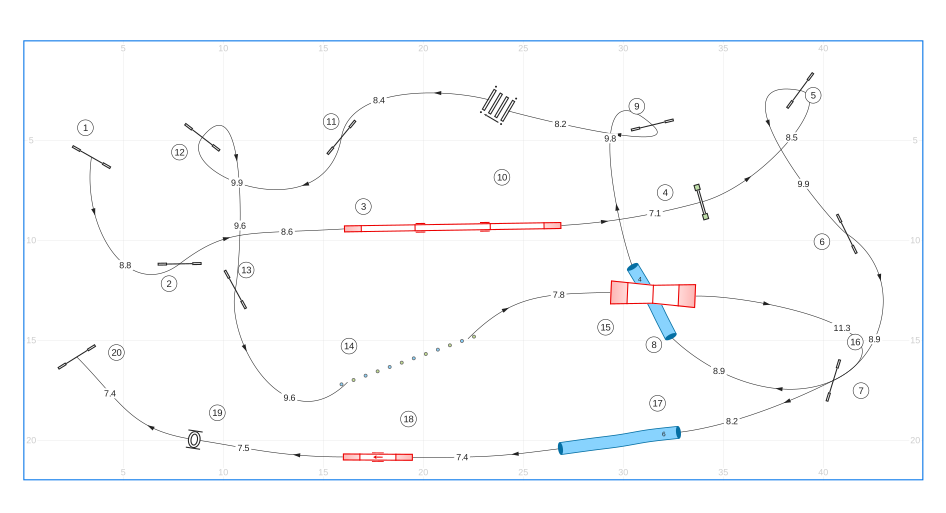
To check your own result in your account: first compare the numbers and the direction of the tunnels with your plan. Then check the field size, listed under the recognised course as “Field”. The image import does not read class and level from the plan. I ask you about unclear spots before you add the course, and you correct missing or shifted obstacles afterwards in Smarter Agility. When you crop the image, leave a narrow margin around the field border, otherwise RunLine can't detect the field reliably.
For this plan, RunLine recognised all 19 obstacles, all 20 numbers and the 45 × 22 m field. Deviations: on the long tunnel at the bottom, the length label “6” sits at the other end, and some numbers are slightly shifted.